Understanding & Developing Presentation Skills I: Structure, Layout & Effects
At the end of this session, you should be able to:
- identify the formal properties of an oral presentation
- identify and evaluate effective presentation techniques on the formal level
- make sensible use of animation strategies and illustrative figures, graphs, and charts
The Structure of Presentations
All presentations, no matter whether they are prepared in PowerPoint, OpenOffice Impress, as PDFs, or in some other form, generally follow the same basic structure. They start with a title page, are then usually followed by an overview of the contents – similar to a table of contents in a printed document –, and a number of content slides. These frequently end with a conclusion slide, at least if your presentation is research-based or argumentative. The content slides can optionally be followed by a list of references (especially in an academic presentation), a Q&A slide, and maybe even a ‘Thank you for your attention’ – slide. The latter, however, is purely a formality and does not really contribute anything to the content of the presentation itself.
All other sections, though, do contribute in one way or another to the content, and we’ll discuss their individual contributions in the following sections.
The Title Slide
The title slide serves to introduce the topic of the presentation and the text is often centred. The title itself appears either at the top or bottom of the slide – maybe roughly taking up the top/bottom third of the slide –, and should be ‘catchy’, but, even more importantly, reflect the topic as clearly as possible. Titles need to be short and precise, like the headlines in a newspaper, so they normally contain fewer words than average sentences, only representing the key information in a highly abbreviated form. In order to abbreviate the content, we normally leave out as many function words – such as articles or prepositions – as possible, while presenting the text mainly through the more meaningful content words – such as nouns, verbs, adjectives, etc.
If appropriate, you may also want to add a subtitle below the main title, as in the example below, but this is not an absolute requirement. If it is present, though, the subtitle should provide even more information about the specific nature of the topic.
Titles and subtitles may consist of only nominal elements, such as in the example below. This is fine if you want to represent mainly facts, rather than procedures. If, on the other hand, your emphasis is on how to achieve an aim or a process (usually along with some facts), as in most of the scenarios you’ll be negotiating on, then you may also want to include some more process-oriented words, as in e.g. a title like ‘Negotiating a Contract’ or ‘Improving & Enforcing Traffic Regulations in China – A Feasibility Study’.
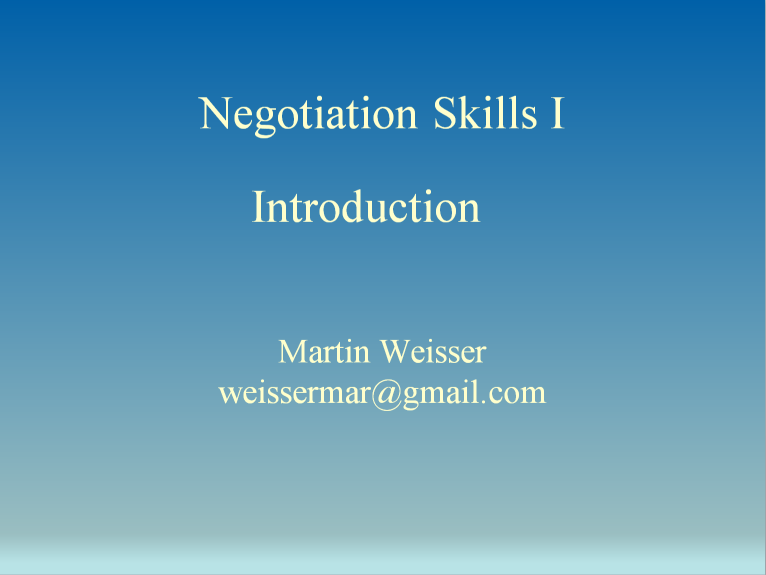
Programs like PowerPoint often provide an empty title page when you create a new presentation, but they may not contain enough text boxes for all the content we want to add to the title slide, and also not use an appropriate layout. Thus you may have to reposition some of the text boxes and possibly also add new ones.
As the title is a kind of heading, it should normally be presented in title case. This means that – as a rough rule (because the conventions may vary) – at the very least the first word and all content words should be capitalised, while function words inside the title are not. Of course, if the particular design you’ve chosen for your presentation automatically uses all-caps, you avoid the whole issue ;-)
Try to see what this should look like by turning the text in the following box into title case and then verifying whether you’ve done this correctly by clicking on the button next to it. Keep on trying until you get it right and also try to understand why you had to capitalise some words and not others.
Next, take the title from above and split it into main title + subtitle, then click the button to see whether you’ve done this correctly.
Title: Subtitle:
Once you’ve added the title (+ subtitle) to your title page, you should also add an appropriate amount of contact information about yourself, generally in the bottom/top third of the slide or immediately above/below the title(s), depending on the slide design. This type of information should consist of the names of all the people involved in creating/doing the presentation, usually an affiliation, as well as one or more email addresses. If you are representing an organisation, then you obviously also need to include some information about that.
As far as animation effects go, it’s best to keep this slide static, especially as it may be displayed for a while while the audience settles in for your talk. If the information is static, this will also allow the audience to write down any contact details before the presentation begins. There may be one sensible exception to this rule, though, which is that you might want to animate a sub-title if you can use it as a form of ‘attention-getter’, e.g. if it contains a joke or pun on the main title, which could help to put the audience more at ease.
Open PowerPoint and create a suitable title page for the topic you’re currently working on. Make sure you include all the parts discussed above. Also save your presentation using a suitable title that explains what it’s about. This should generally include something like an abbreviated version of your presentation topic, but you may also want to add your name at the end, just in case you need to send the presentation to someone else, such as your course tutor or a client, and you want that person to be able to distinguish easily between different presentations they may receive.
The Contents/Outline Slide
The contents/outline slide is generally also static, as it provides an overview of all the topics that will be discussed in the presentation. Just like the table of contents in a written document, it serves as an outline that ought to reflect the logic of your approach to the topic. In other words, it needs to contain suitable headings that demonstrate how you have sub-divided the research task (and scenario, in our case) into clearly defined logical steps that will allow you to reach an equally logical conclusion at the end of your presentation. Of course, sometimes this structure may in fact be prescribed to a certain extent in certain disciplines and then you can just use the headings you’re expected to use.
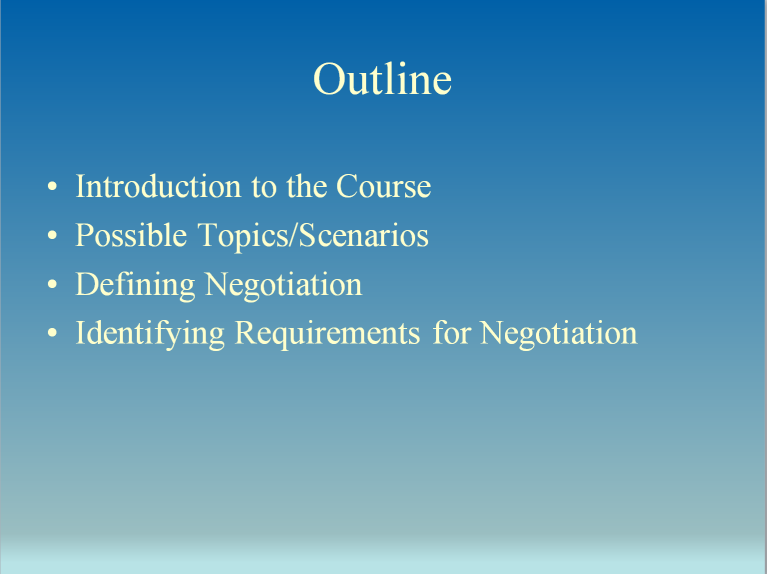
Go back to the presentation you created earlier and try to create a contents slide that reflects all the stages/sub-topics of your presentation. For the negotiation scenarios, this definitely needs to include background information on the issue under negotiation, the possible knowledge & interests of both parties, expected outcomes for both parties, etc.
The Main Content Slides
The main content slides make up the body of your presentation and are similar to chapters or sections in a written document. The topmost text box of each slide should thus always contain an appropriate heading, clearly indicating what the slide is about, while the rest of the slide may contain one or more text boxes, or a mix of text and graphics/tables.
How to Present Textual Information
Unlike in a written document, where the text is subdivided into paragraphs, the text on a presentation slide should be organised as a series of ‘bullet points’, unless it contains a single large quote. These bullet points should in general not contain any fully formulated text because this would a) take up too much space, and b) induce the presenter to simply read them off, something that is not appropriate for a presentation. Instead, the content of bullet points should consist of key/cue phrases that are more or less formulated in ‘telegram style’. E.g., instead of something like The results of our survey indicate that there was an overall increase of 10%, you should probably write survey results indicate 10% increase or something similar. The basic strategy is to simply leave out as many function words or unnecessary content as possible, ensuring that the text is still understandable and may even leave a lasting impression, such as a well-written newspaper headline should. The key phrase can then act as a kind of ‘prompt’ for the presenter, who can fill in the missing words during the presentation.
The following is the list of findings your team has collected regarding the decreasing attendance at public concerts at Hong Kong Cultural Centre (HKCC). Try to create a set of PowerPoint slides (with appropriate headings) to present the information verbally. If you feel it necessary, you can also add graphs to support the text.
- Concerts held on Thursday nights on average only attract 50 people, Sunday concerts, in contrast, 180, and Saturday concerts, 300.
- Your survey shows that, from 250 people interviewed in detail, 85 like classical, 70 rock, 35 jazz, and 60 folk music.
- 25% of all interviewees said that ticket prices were reasonable, 10% found tickets cheap, and 65% claimed that tickets were too expensive.
- When asked how they had become aware of the concerts, most people stated that they had either learnt about the events from friends or seen them advertised online, and only some people that they had seen the concert posters in public places.
Bullet points should be arranged in hierarchical order. Just like a table of contents in a document, the hierarchy within your bullet points should reflect your ability to distinguish between the most important points of your argument, and to logically group related issues or relevant examples together.
Each slide should normally not contain more than 7 or 8 bullet points, and, as a rule, should take about 2 minutes to present. If there is too much content on a slide, the text will become too small and thus illegible, and the amount of information may also be too much. If you find that your (sub-)topic requires more bullet points, then you should continue it on another slide with the same heading. In this case, it’s best, though, if you add an index in round brackets to the heading, e.g. Technical Specifications (1), Technical Specifications (2), Technical Specifications (3), etc.
Go back to the presentation on your topic that you created earlier and start creating your main topic slides, giving them appropriate headings (according to your outline), as well as adding suitable bullet points.
Using Sensible Animation Techniques
Research from cognitive psychology has shown that the audience’s ability to deal with presentation content is constrained by a number of factors, such as a limited capacity regarding the amount of information that can be held in memory at any given time, the fact that it is generally ony possible to focus on one piece of input at a time, etc. Thus, the main parts – i.e. not the headings – of content slides should also be suitably animated. Each main bullet point, and often also any subordinate points, should be introduced to the audience step by step, so that they can focus on it individually. Many people still make the mistake of showing all bullet points at the same time, but the problem with this is that the audience will then start reading everything that appears on the slide immediately once it’s displayed and may therefore miss some of the initial points you’re trying to introduce because they’re still reading through the rest.
Investigate how to animate your bullet points in PowerPoint, then try to think about which types of animations can be used sensibly in a presentation, so as not to distract the audience too much from the content. Also think about what kinds of features or ‘strategies’ of animation should best be avoided. Once you’ve developed some ideas, take a look at the sample presentation, which illustrates the general layout of a presentation and some sensible uses of animation.
Using Illustrative Materials
Apart from the textual information, it is frequently also useful and advisable to integrate other illustrative material, such as images, graphs/charts, equations, or even multimedia into your presentation. However, such items should generally either complement or summarise the text, and thus always be related to the actual content of the presentation. Using ‘flashy’ layout or colours, as well as unrelated illustrations, is much more likely to be a distraction to the audience than being useful in conveying your information.
If you think that an illustration works best to make your point, then you can include slides that contain only such illustrations, provided that you then actually spend a suitable amount of time discussing them, too, rather that leaving it up to the audience to interpret what you’re trying to say. Yet, you should always ensure that your illustrations are as simple to understand as possible because highly complex illustrations take a long time to explain and are more likely to cause confusion than to support your argument. This video, although of course it exaggerates some of the issues, illustrates many of the most common mistakes that less experienced presenters tend to make when creating PowerPoint presentations.